ChemUnited-Drive Application
This application provides a graphical interface to manage, configure, and run FlowChem projects. It allows users to load project configuration files, discover connected devices, edit settings, and launch the FlowChem server directly from the interface.
🧩 Overview
ChemUnited-Drive acts as a friendly GUI for FlowChem configurations, and easily integration whit ChemUnited Orchestration.
It bridges the gap between device setup and automation, allowing you to:
Load existing FlowChem project folders.
View and edit the __configuration_file.toml.
Discover supported FlowChem devices (serial or Ethernet).
Start and stop FlowChem servers from the GUI.
View process logs in real time.
🖼️ Application Workflow
1. Main Interface
The main window provides four tabs for navigation:
Tab |
Purpose |
|---|---|
FlowChem |
View and edit the configuration file. |
Project |
Manage and open existing project folders. |
Discover and Add |
Automatically find connected FlowChem devices and add it. |
Logging |
View logs and FlowChem process messages. |
Settings |
Settings of the application. |
2. Projects View
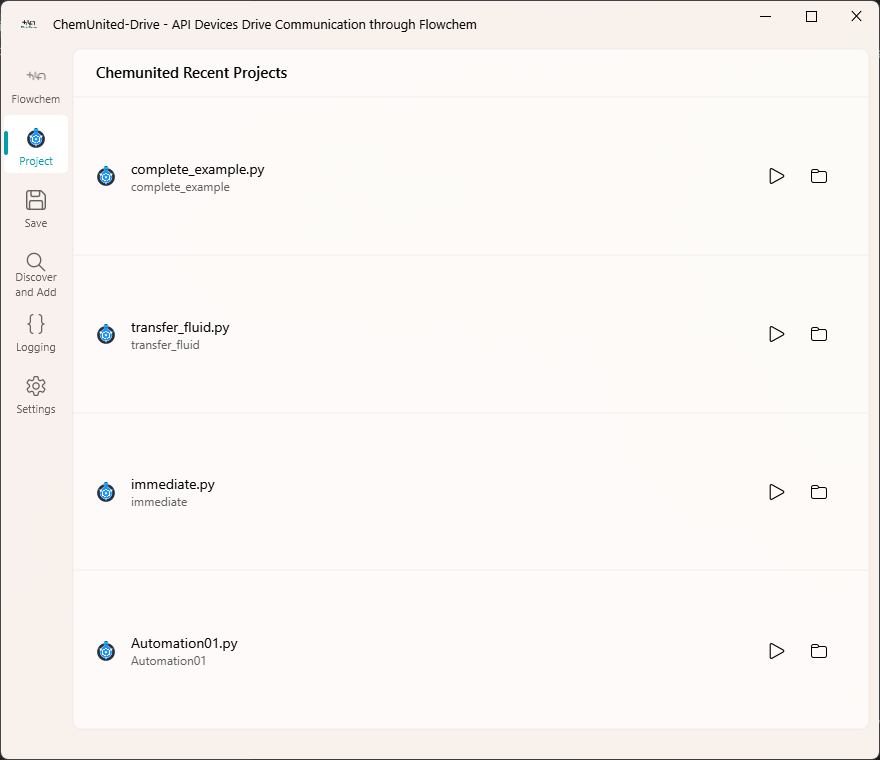
The Project tab lists all recent FlowChem projects stored in your workspace.
Each card offers:
▶️ Run – Load and execute the project’s configuration file.
📂 Open Folder – Open the project directory in the system file browser.
3. Configuration View
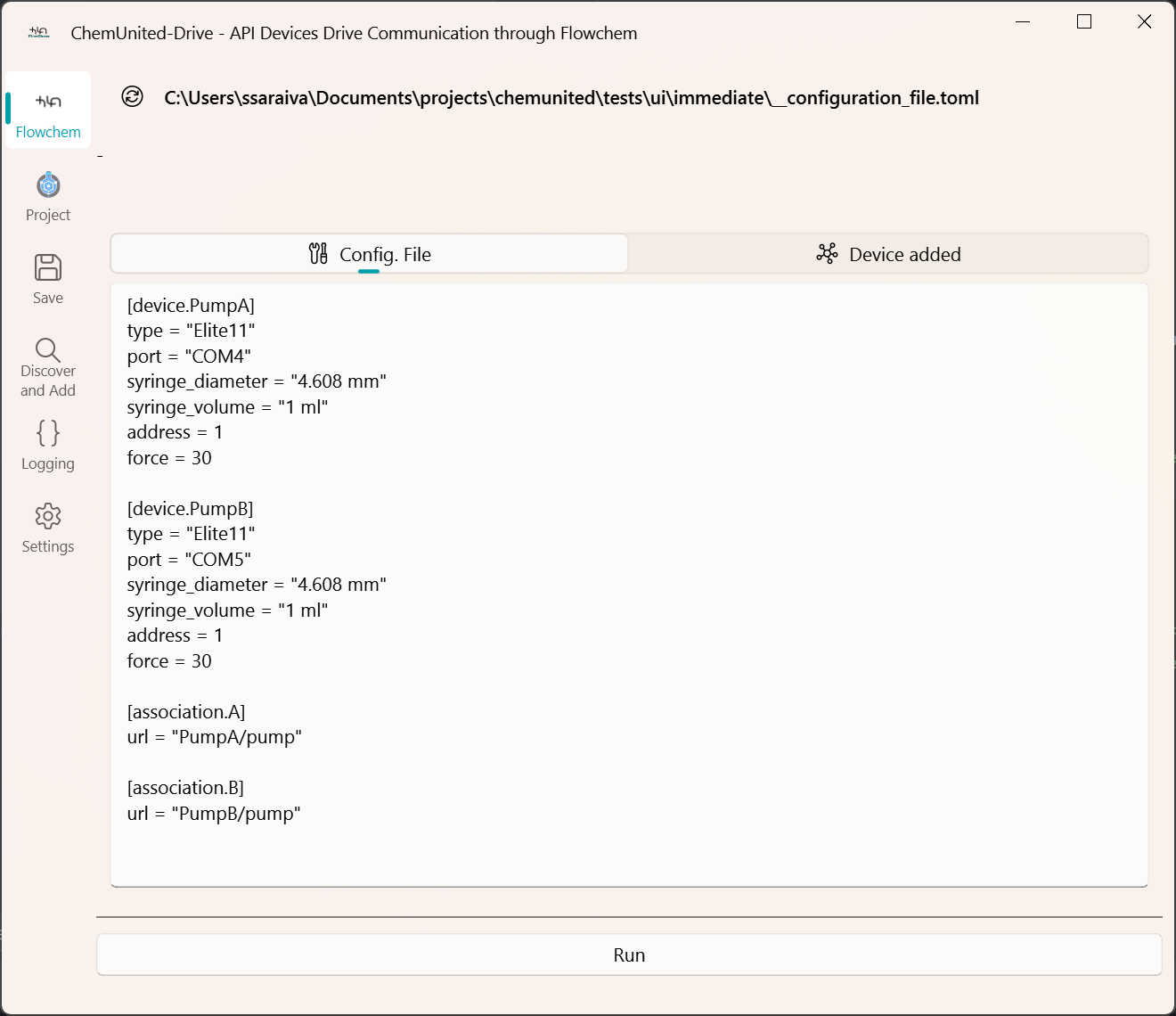
When a project is loaded, its configuration file (__configuration_file.toml) is displayed and can be edited.
Use:
Run → to start the FlowChem server.
Stop → to terminate it.
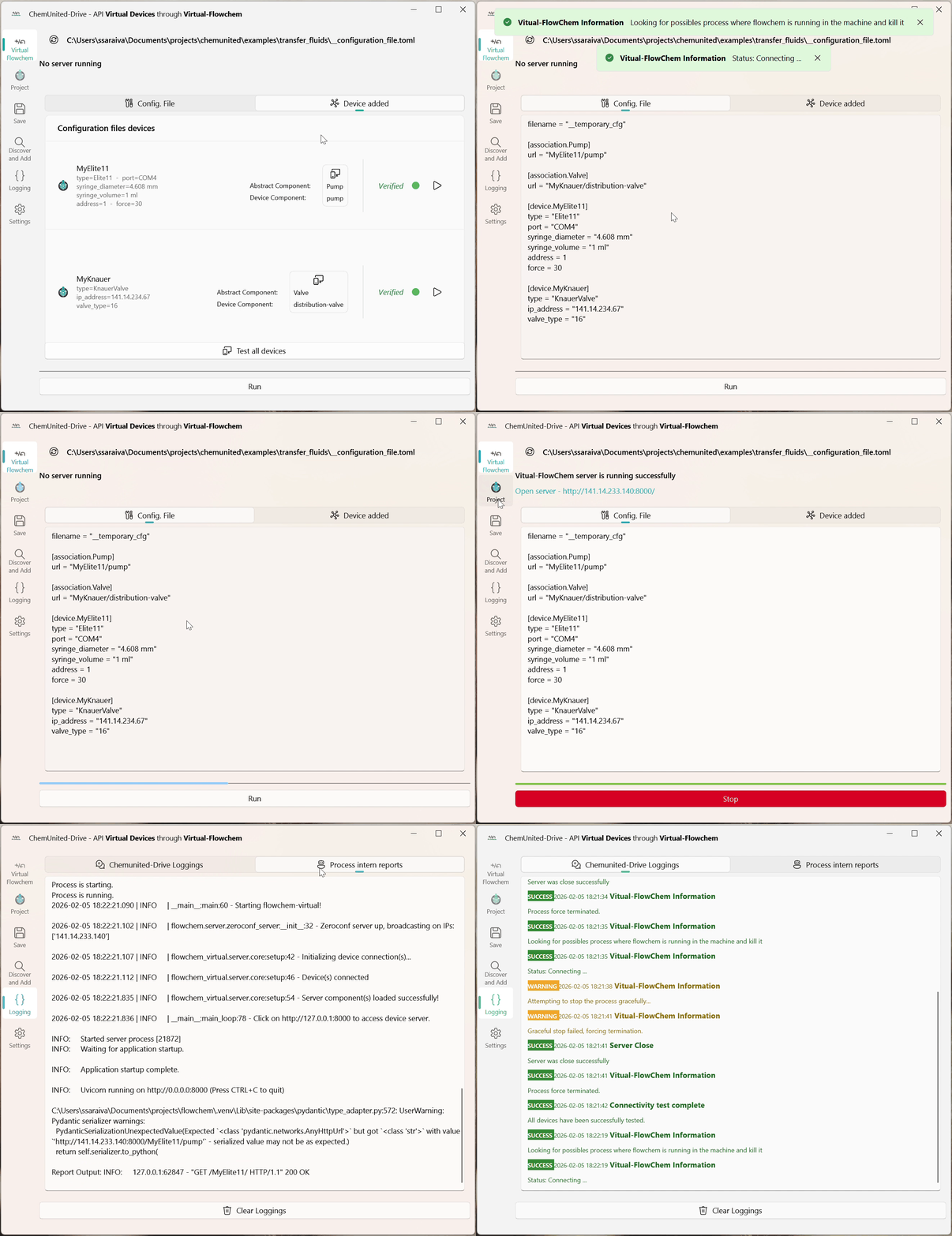
A progress bar shows the initialization status, and the application provides live feedback and clickable server links once the process is running.
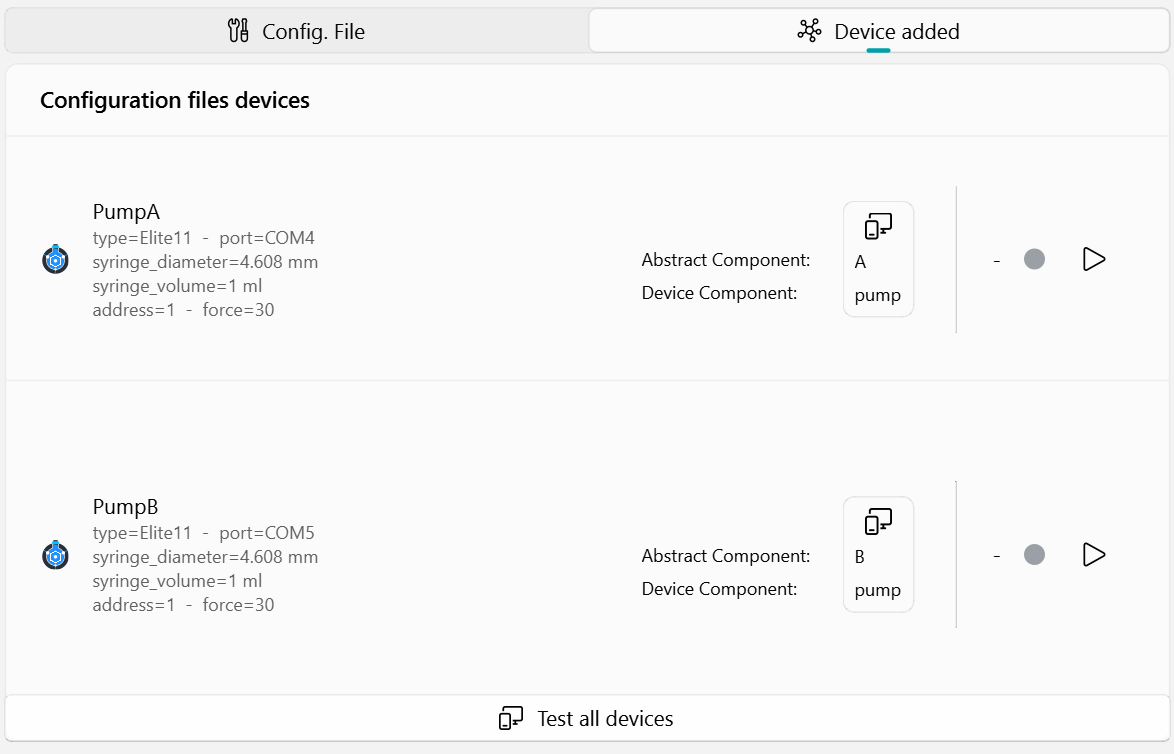
In the device added the user can inspect the device presented in the config file and test its connectivity individually.
4. Run and Monitor FlowChem
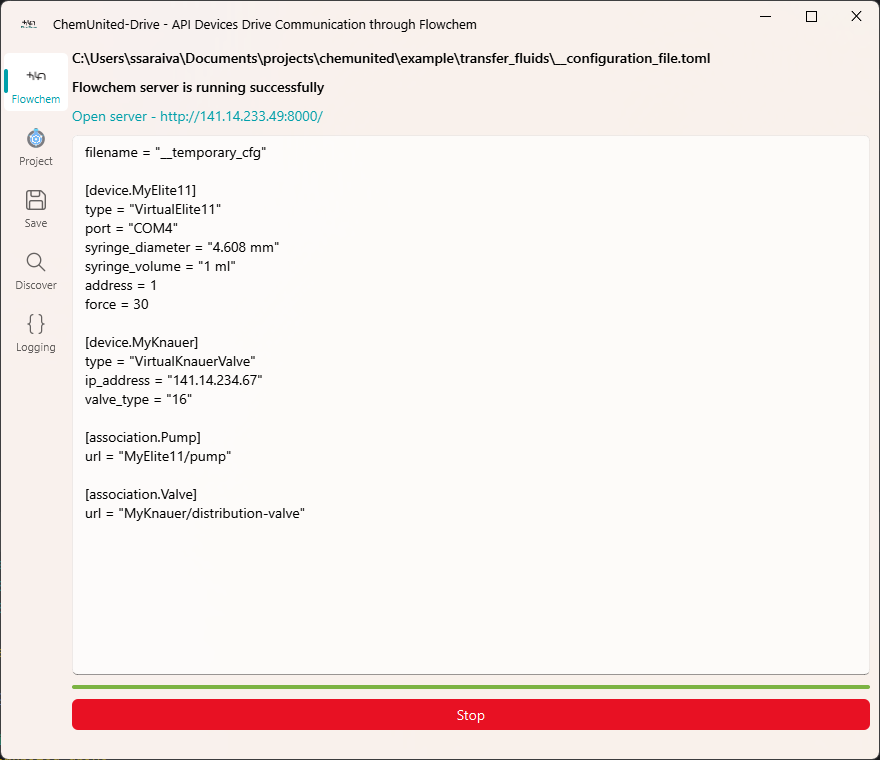
When you press Run, the GUI performs the following sequence:
Saves any edits to a temporary TOML file.
Asks if you want to terminate existing FlowChem processes.
Launches FlowChem as a subprocess (flowchem.main.py) via QProcess.
Displays logs and connection information.
Once the server starts (http://127.0.0.1:8000), a direct link appears in the GUI.
Stopping the server gracefully sends a SIGINT or CTRL_BREAK_EVENT, ensuring a clean shutdown.
🚀 Running the Application
To start the GUI manually, run:
python -m ChemunitedDrive
or, if installed as a package:
chemunited-drive
🧰 Device Discovery or manually added
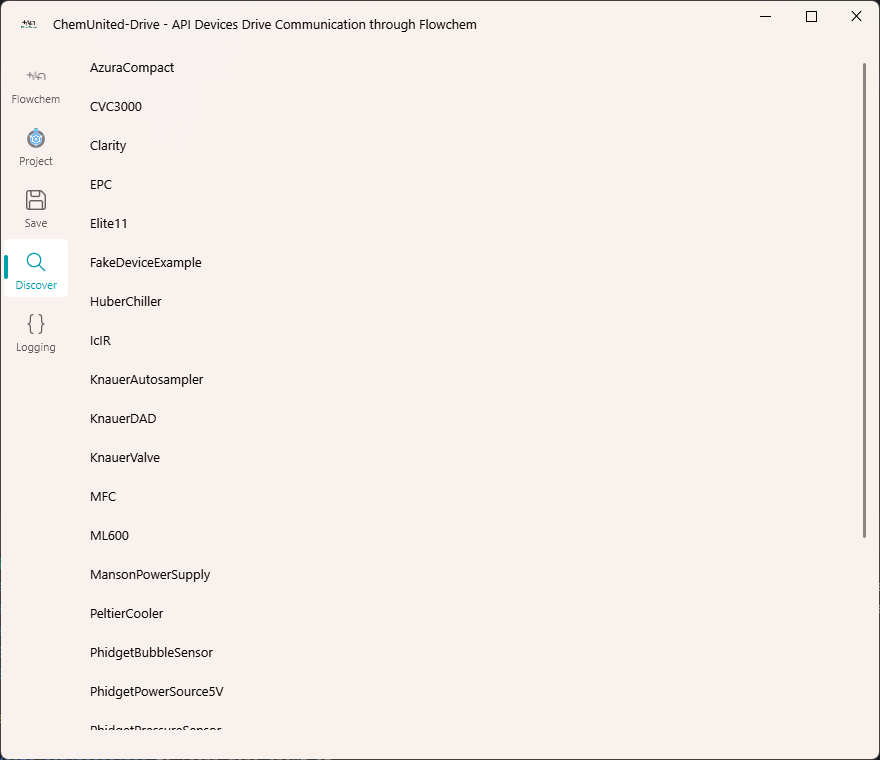
The Discover tab uses built-in FlowChem finders to detect connected devices:
Serial devices (via pyserial and aioserial).
Ethernet devices (via broadcast search using user-defined IP).
Each discovered device automatically appends its configuration block to the current TOML file.
The user also has the option to automatically add the device configuration block. This tool is useful for adding devices for which the finder feature is unavailable.
🗂️ Temporary Files
All temporary and recent project files are stored in:
%APPDATA%/ChemUnited/ChemUnited_Recent_Projects
This includes:
__temporary_cfg.toml– last edited configuration.recent_projects.toml– list of project paths.
🧾 Logging
The application logs:
QProcess messages from FlowChem.
Success, warning, and error InfoBars.
Full traceback details in case of exceptions.
Logs appear both in the Logging tab and in the console (via loguru).
⚙️ Settings
ChemUnited-Drive can run in Virtual Mode, which replaces the standard flowchem backend with flowchem-virtual.
Why this is useful
Allows you to test the full workflow without physical hardware
Useful for training, demos, debugging, or developing protocols when devices are not available
Helps validate that your configuration file is correct before connecting real instruments
Where to enable it
Settings → Virtual Mode
🧑🏫 Tutorial
This tutorial demonstrates the main features of ChemUnited-Drive using a simple example configuration. We will configure two devices from HarvardApparatus and Knauer:
Elite11 syringe pump
Distribution Valve
Goal: Create a configuration file that launches a FlowChem server exposing these devices, validate connectivity, and start the server.
Step 1 — Start ChemUnited-Drive
After creating a project in ChemUnited Orchestrator, open ChemUnited-Drive by running:
chemunited-drive
In the main window, select the project configuration workflow by clicking:
 -
-
Open Project Configuration File.
This option helps you create or edit the configuration file associated with your project.
You can use ChemUnited-Drive even without a ChemUnited Orchestrator project. The project integration is provided only for convenience (it helps locate and manage configuration files).
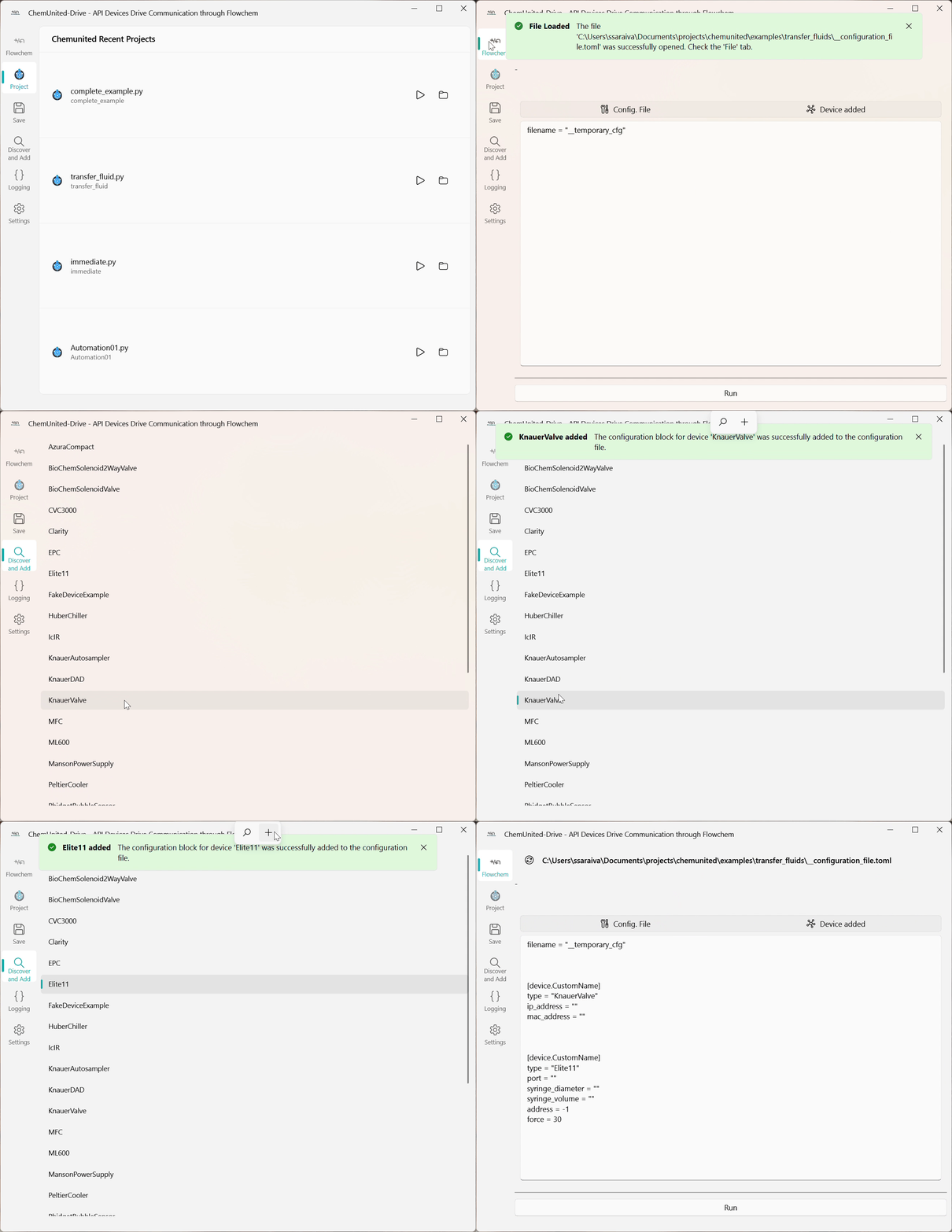
Step 2 — Add device blocks (discover or manual)
After opening the configuration editor, you can add devices in two ways:
Discover devices (recommended when hardware is connected)
Add configuration blocks manually (useful for Virtual Mode or when preparing the file in advance)
In this tutorial, we do not have real hardware connected, so we will add blocks manually:
Step 3 — Configure device parameters
Once the device block is added, configure the connection and device parameters (e.g., address, port, serial settings, channel IDs, etc.).
If you are unsure what each parameter means, refer to FlowChem’s device documentation: Supported devices and configuration reference.
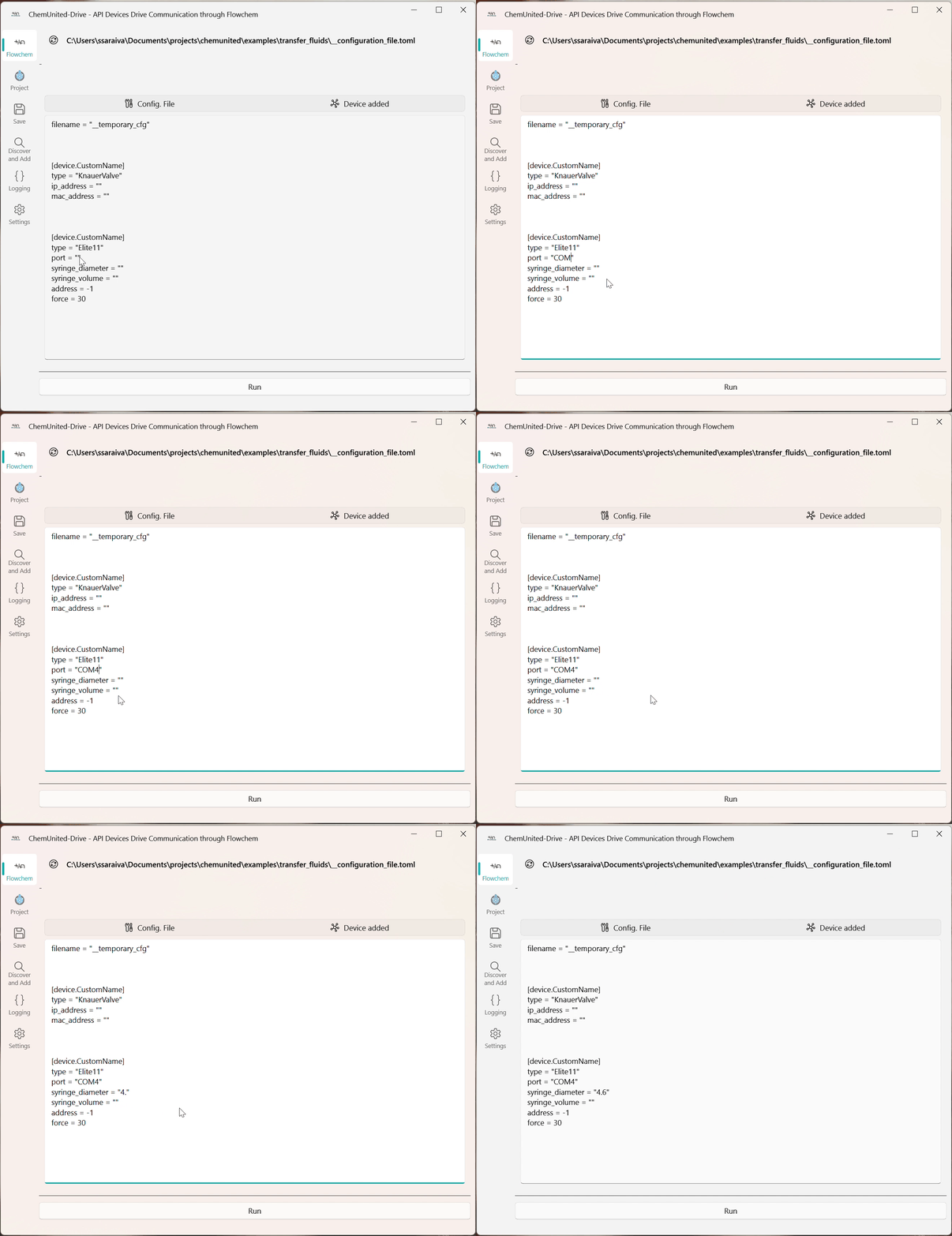
At the end of this step, ChemUnited-Drive generates a TOML configuration file.
Example structure (illustrative):
[device.MyElite11]
type = "Elite11"
port = "COM4"
syringe_diameter = "4.608 mm"
syringe_volume = "1 ml"
address = 1
force = 30

[device.MyKnauer]
type = "KnauerValve"
ip_address = "141.14.234.67"
valve_type = "16"
Step 4 — Run device diagnostics
Before launching the server, run Diagnostics to verify each device configuration independently. This step is important because it helps you detect connection problems early (wrong address, missing device, incorrect parameters, etc.).
In this tutorial we use Virtual Mode for demonstration, since no real devices are connected. Enable it in
Settings → Virtual Mode.
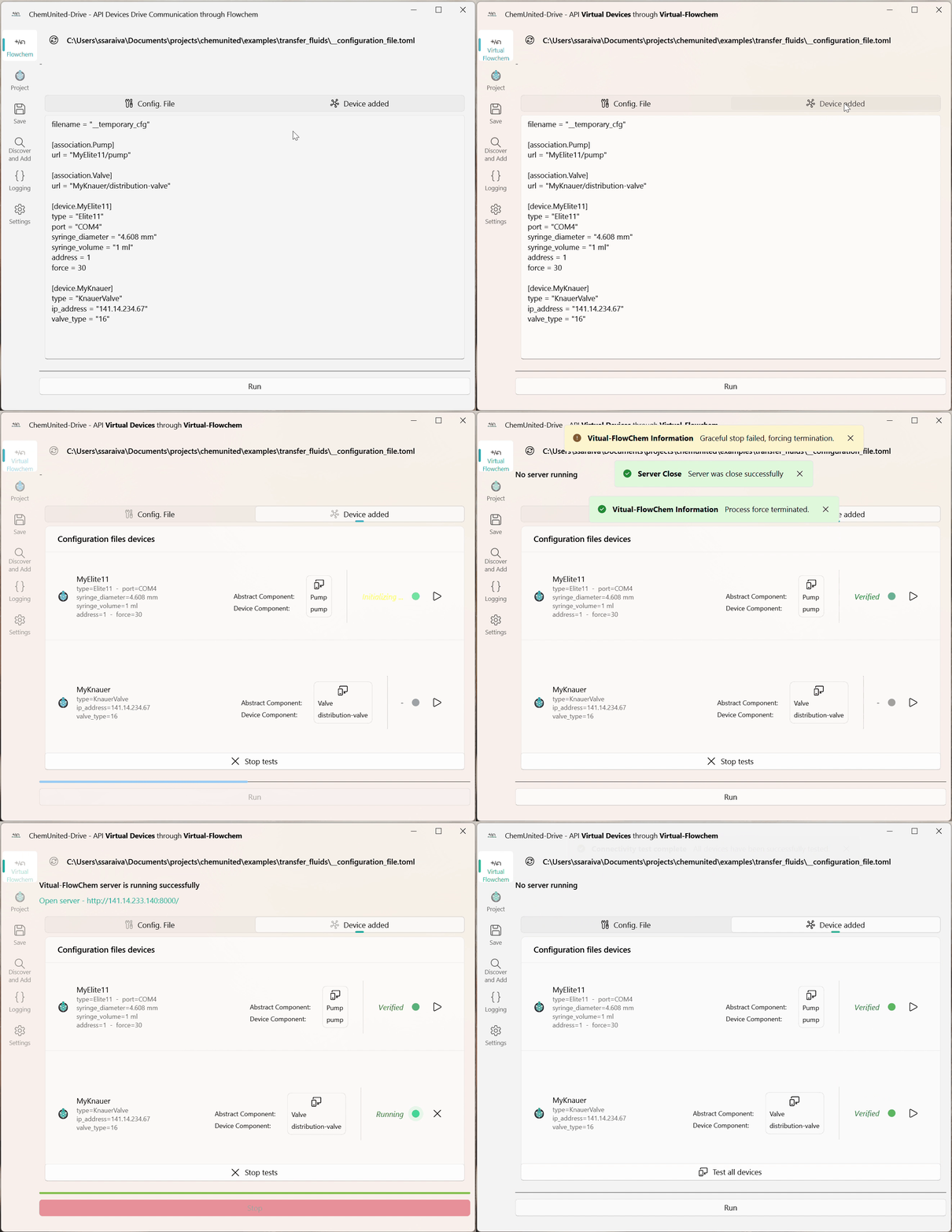
Step 5 — Launch the FlowChem server
Once diagnostics succeed, launch the server. ChemUnited-Drive will start the FlowChem service and expose the configured devices through an API.
You can then:
open the server link directly (if provided), or
inspect the logs to confirm the server is running and devices were loaded correctly.
What you can do next
After the server is running, return to ChemUnited Orchestrator and associate the online devices with the abstract components in your workflow graph (drag-and-drop association). Once connected, your protocol can send commands to the devices via API.