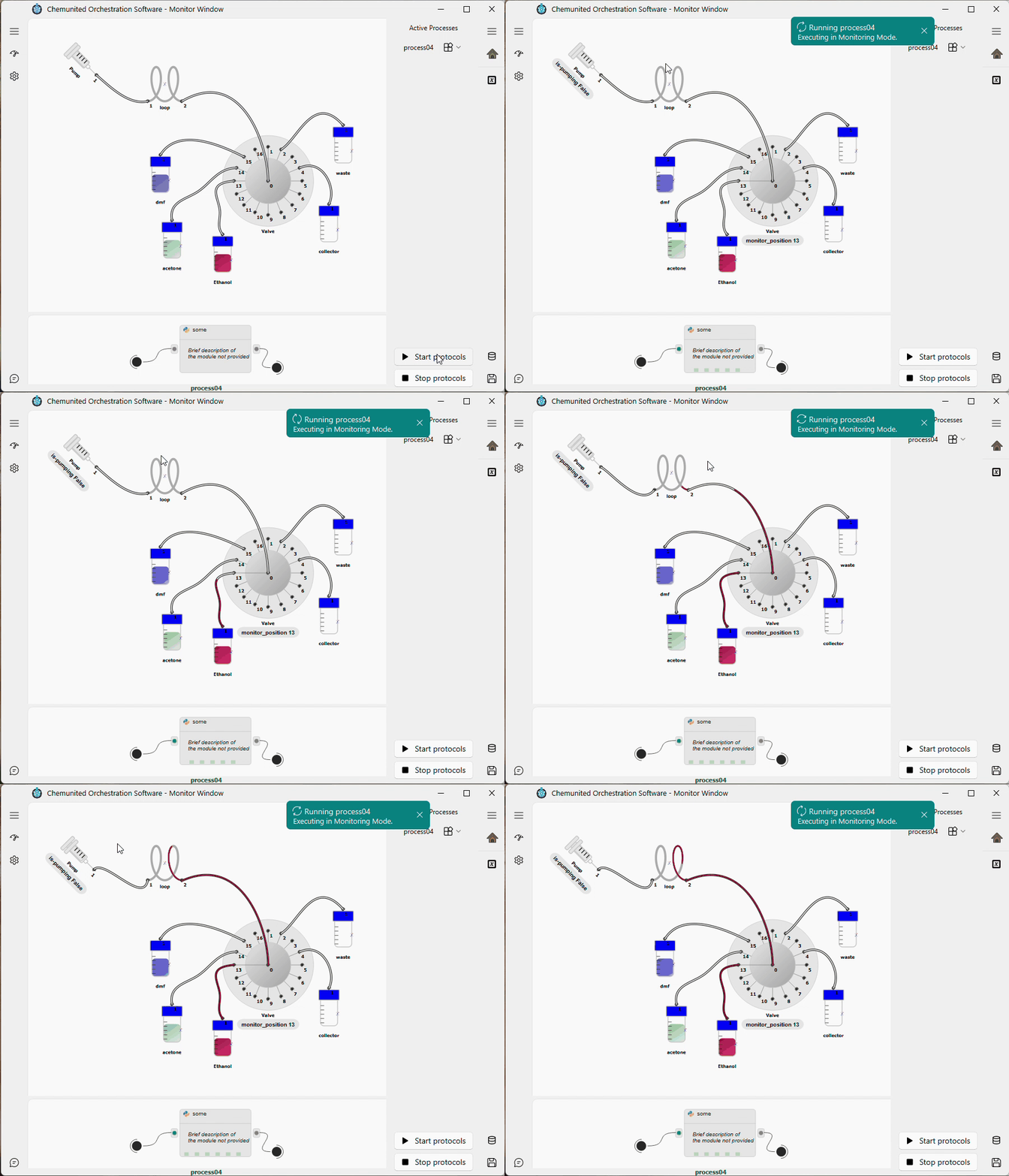
Run and Monitoring
The Monitoring window is intentionally simpler than the Setup window. Its purpose is to run a protocol that has already been created, following the order of the processes listed under Active Processes.
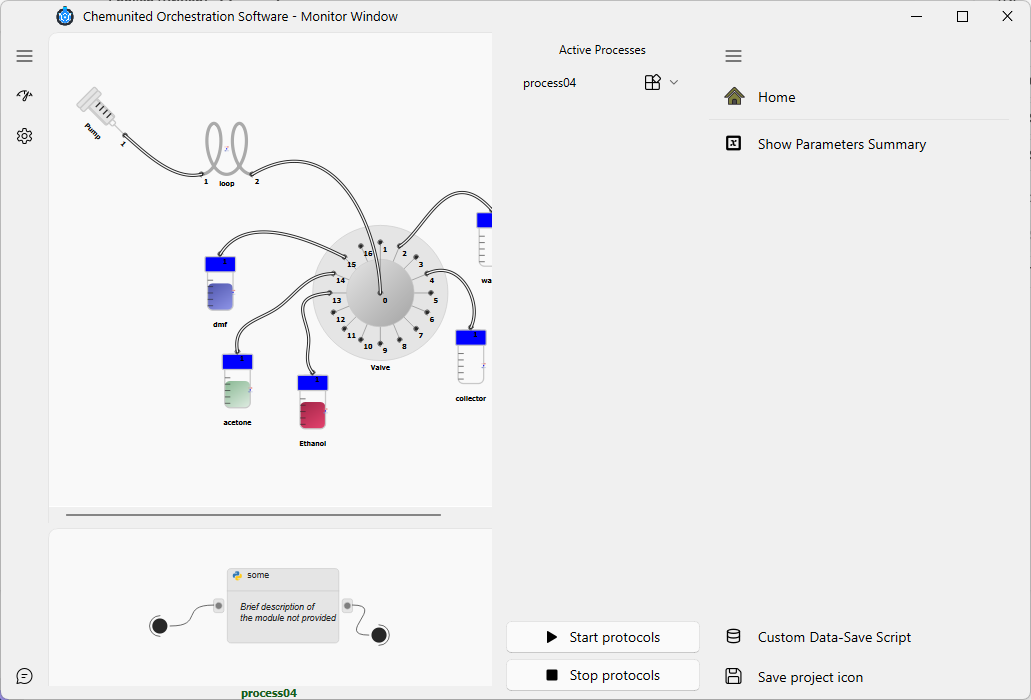
The buttons shown in the figure above is described as:
 Show Parameters Summary
Opens a read-only view with all predefined parameters (main and process parameters), including their current values.
 Custom Data-Save Script
Opens the editor for a custom data-saving script. Use this to define how experimental data should be stored (e.g., file format, naming, metadata), based on a predefined class/template provided by the application.
 Start protocol
Starts the execution of the full protocol, running all processes in the order shown in Active Processes.
 Stop protocol
Stops the currently running protocol execution.
Running individual processes
In addition to starting the full protocol, each process listed under Active Processes includes its own option/menu to run that process individually. This is useful for testing a single process step without executing the full sequence.
🧑🏫 Tutorial Example
For this tutorial, you only need to click Start Protocol. The application will execute the processes listed in Active Processes in order.